Tuesday, June 14, 2011

How To Submit Blogspot Blog To Google

Here is a step by step guide on how to submit your Blogspot blog to Google search.


Step 1 - Make sure that you enable your blog to be crawled by Google. To do this, log in to your Blogger account and go to Dashboard > Settings > Basic. Now set the boxes that say Add your blog to our listings? -- Let search engines find your blog? to yes.

Step 2 - Now go to Google Webmaster Tools and add your blog.

Note: You will have to verify that you are the owner of your blog. Google will provide directions on how to do that.


Step 3 - Once you add your blog, click on your blog link.


Step 4 - It will then take you to a page that has a bunch of settings and information about your blog. But what we want to do now is add a Sitemap. Go to Site Configuration > Site Maps

Step 5 - Press the Submit a Sitemap button

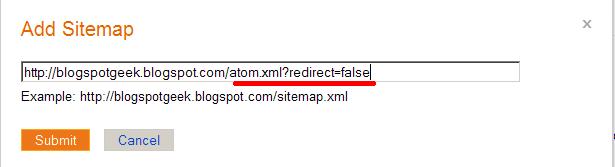
Step 5 - Add your Sitemap by putting the following URL after your website address.

atom.xml?redirect=false

Step 6 - You're all done now. Just wait a couple of weeks and do a search for your blog to see if your blog has been indexed yet. Remember, it can take a very long time for your blog to appear in search results -- It's just the way Google does things.

How To Submit Blogspot Blog To Yahoo Search

Here is a step by step guide on how to submit your Blogspot blog to Yahoo search.

Step 1 - Go to Yahoo Site Explorer and sign in to your Yahoo account.

Step 2 - Enter your Blog URL and hit the button that says "Add a site"


Step 3 - You will now have to verify that you are the owner of your blog. Follow the instructions that Yahoo provides.

Step 4 - Once you are confirmed you now have to submit a site feed. Click the link to your blog under "My Sites".

Step 5 - Now look for "Feeds" on the left side of the page.

Step 6 - Enter the following URL after your blog address.
 atom.xml?redirect=false


Step 7 - All done! Now enjoy some added traffic from Yahoo search!

How To Submit Blogspot Blog To Bing Search

Step1 - Go to Bing Webmaster Tools and log into your Microsoft account.

Step 2 - Click the "Add site" button and add your blog.


Step 3 - Now you will have to verify you are the owner of your blog. Follow the instructions that Bing provides.

Step 4 - Once verified, it's time to add a Sitemap. Click on the link to your blog that will be under "Sites".


Step 5 - You will now see some links on the top part of the page that say Home > Dashboard > Crawl > Index > Traffic.
Click on "Crawl".

Step 6 - Now click on Sitemaps on the top left hand side.


Step 7 - Add your Sitemap by clicking the "Add a Sitemap" button


Step 8 - To add your sitemap, add the following URL to the end of your blog URL.

atom.xml?redirect=false


Step 9 - Hit "Submit" and you're done! Now enjoy some traffic from the Bing search engine!

How To Add Facebook Fan Page To Blogspot Blog

Instructions:

Step 1 - Go to Facebook Likebox and play around with the settings to fit your needs. Make sure you put your Facebook URL in into the URL input box or you will be putting somebody else's fan page on your blog.

Step 2 - When your done with the editing, click the "Get Code" button.

Step 3 - Copy the iframe code block that is displayed. Don't copy the XFBML code.


Step 4 - Paste the code into an HTML/Javascript gadget and place it in your sidebar.

Step 5 - If you run into problems with the height and width of your fan page widget, look at the example code I have below and edit the values that I have highlighted in red. There are two sets of widths and heights, and you must change them both.


<iframe src="http://www.facebook.com/plugins/likebox.php?href=http%3A%2F%2Fwww.facebook.com%2Fpages%2FBlogSpotGeek%2F205275696151611&amp;width=292&amp;colorscheme=light&amp;show_faces=true&amp;stream=false&amp;header=false&amp;height=250" scrolling="no" frameborder="0" style="border:none; overflow:hidden; width:292px; height:250px;" allowtransparency="true"></iframe>


That's all folks! Enjoy the benefits of having your fan page on your blog. Hopefully it will bring you more fans!

Monday, June 13, 2011

Shutdown PC with Mobile Phone

Now i am going to tell you how to shutdown your Pc with mobile phones.

You have following things before doing this:
1 outlook and email address of gmail
2 A "Kwiry" account
3 A text capable cell

Step1:- Creating "Shutdown.bat" file

Open Notepade:

Write C:\windows\system32\shutdown -s -f -t 00 and save it in same drive where your window installed , mostly window installed in C: drive so save it with the name of shutdown.bat.

Step 2:

Get a POP3 Capable email account : mean create an gmail account.

Step 3: Setup microsoft outlook :

Open outlook go to tool menu and open email address option from there

Now an window is open choose Add a new email account option.

click on next
Choose POP3 option and click next
Now an window open write there your username and password and other details as below
write user username of email address: username
Address : email address write here

Now on Incoming POP3 write: pop.gmail.com
On outgoing smtp write: smtp.gmail.com

your username : Your username
Password : your password
Go to more setting button and click on it..
Now an window open in General menu write pop.gmail.com
Go to Outgoing menu and check my outgoing server(SMTP)
choose an option of same setting as my incoming mail server.
Now go to advanced menu
write on the side of incoming server(POP3): 995
check the this server requires an encrypted connection
check this server require an encrypted connection

Check the leave a copy of messages on the server

clik ok
click on next button
click on finish button

Step 4 sign up for "Kwiry account"
Open internet browser and open kwiry website
Read instruction their and make an account on that site.

Step 5

Set up a rule in outlook for that open outlook go to tool menu open send and receive messages
An window will open
check there include this group in send/receive(f9)
check schedule an automatic (read/receive) every set time to 1 mintue
click on close button
click on tools menu and select rules and alerts
choose new rules
choose the option of start from a blank rule
check message when they arrive
click on next
now check the with specific words in the subject
click on specific words and in step2 : type your kwiry-shutdown
click on add button and then click on next button
now check the start application in the same window and click on applications

in step2: open an file with type of all file*.*
open from my computer/c/shutdown.bat
click on next and click on finish
apply and ok
step 6:

send an message from your cell
To 59479
type shutdown
After message send your pc will be automatically shut down hope this trick will be help you to shutdown your pc from anywhere .

if you like this trick then leave an comment and also suggestion for improvement.

How to Create Slogans

If you are looking for how to create these slogans then try to this link.

http://www.sloganizer.net

Friday, June 10, 2011

What Is Keyword Stuffing?

Everyone knows that keywords are a critical element in any search engine optimization (SEO) campaign. Using a variety of methods such as content and meta tag creation, link building and others, the ultimate goal is always to have each page on your website rank for as many keywords with high search volume as possible. But the question remains: how many keywords is that and when does keyword targeting turn into SEO keyword stuffing?

One of the first signs of a novice SEO campaign is a Web page that is littered with keywords. When every other sentence is crammed to the max with keywords, it’s a red flag that the website is engaging in keyword stuffing.

Below is a keyword stuffing example:
If you’re looking for tennis shoes, you’ve come to the right place. Our website is the best place to buy tennis shoes. You won’t find better tennis shoes or cheaper tennis shoes anywhere else. We invite you to check out our great selection of tennis shoes.

Clearly, in this example, the website is trying to rank for the word tennis shoes. But in attempting to rank for this keyword, they may actually be doing more harm than good. Google and other search engines assign a keyword stuffing penalty to sites that over-optimize. If they didn’t, every website would simply try to include their keyword as much possible – much to the dismay of their readership!

The content on each of your Web pages should be written naturally, with just a few variations of your main keyword sprinkled throughout. Write for your readers first – and then take care of the SEO. Oftentimes, you can’t even tell that some of the most well-written Web pages have been optimized for SEO.